Centralize Business Data for Contractors, Be Ready for IRS Audits
Centralize Business Data for Contractors, Be Ready for IRS Audits

Centralize your customer, invoicing, scheduling and accounting data by migrating a cleaned inventory of master records into a mobile-first all-in-one platform, and start with an inventory and a backup. That sequence protects you from the two most common migration failures: messy imports and lost transaction history. A platform like this gives field and office teams a single login to work from once the move is complete.
TL;DR:
- Clean duplicate customer and vendor records before export, standardize contact fields, and build the customer master list first; tidy exports can take a few hours.
- Back up every source system off network, test a small import, preserve individual transactions in chronological order, and reconcile each batch against bank and payment records.
- Keep archived exports through at least one full tax cycle and verify a test restore before retiring old systems, rather than relying only on vendor backups.
- Limit permissions by role, require multifactor authentication for financial and admin access, and store separate backups off network at least weekly.
- Electronic records must be indexed, stored, and reproducible in legible form; employment tax records must be retained for at least four years.
Table of Contents
- Why centralize business data in your service company
- Step 1: inventory and classify your existing records before you import
- Step 2: how to choose a mobile-first all-in-one platform
- Step 3: migration checklist: export, import, reconcile, validate
- Step 4: security, backups, and governance after centralizing
- Step 5: keep your records audit-ready under IRS rules
- How MyBizApps maps to this playbook
- Training and onboarding strategies for small teams
- Change management tips to minimize disruption
- Common pitfalls during centralization and how to avoid them
- A pragmatic case for centralizing now
- Explore MyBizApps for a mobile-first centralized system
- FAQ
- Sources
Why centralize business data in your service company
Switching between a scheduling app, an invoicing tool and a separate accounting program wastes time and invites typos. When a dispatcher enters a job in one system and a technician logs hours in another, someone has to reconcile the two by hand. Centralizing those records under one login removes that extra step for both field and office staff.
The payoff shows up fastest in billing. Businesses that connect scheduling, work tickets and invoicing report faster invoicing and improved cash flow once a technician can close a job and trigger an invoice from the same screen.
- Fewer double entries between scheduling, invoicing and accounting
- Shared customer history that dispatchers and billing staff both see
- Fewer scheduling conflicts because one calendar drives the whole team
One consideration: NIST guidance notes that once you consolidate information in one place, you also need to limit employee access to a need-to-know basis, since a single system now holds everything a thief would want.
Step 1: inventory and classify your existing records before you import
Before you touch a migration tool, write down what you actually have. Most service businesses are surprised by how many places customer and job data live: a scheduling app, a spreadsheet of quotes, a separate invoicing tool and sometimes a drawer of paper tickets.
- List every data type: customers, contacts, invoices, payments, schedules, work tickets, assets and inventory.
- For each record type, note an ID, current status, whether it contains sensitive data, where it is stored, and when it was last updated.
- Remove duplicate customer and vendor records before you export anything.
- Archive or close out jobs and invoices that are fully settled so they do not clutter the new system.
- Standardize formats, like phone numbers and addresses, so imports do not choke on inconsistent fields.
Pro Tip: Build your master customer list first; every other data type (invoices, schedules, tickets) links back to it, so cleaning it early saves rework later.
Practitioners who handle these migrations regularly report that clean exports of master data are the single biggest factor in a smooth transition, with a tidy starting point taking a few hours and a messy one taking much longer.
Step 2: how to choose a mobile-first all-in-one platform
Not every platform that calls itself “all-in-one” actually covers a service business end to end. Run any option through this checklist before you commit.
- Functional coverage: does it handle CRM, quotes, invoicing and payments, scheduling and dispatch, accounting exports, work tickets and inventory in one place?
- Export and audit features: can it produce CSV or PDF exports on demand, schedule backups, and keep an audit log of who changed what?
- Admin controls: does it support role-based permissions so not every user has full access?
- Security: does it offer multi-factor authentication, encryption of stored data, and offsite backups?
- Mobile workflow: can a technician in the field do everything they need without switching apps?
- Migration support: does the vendor help map and import your existing data, or do you do it alone?
A platform that checks every box above removes the need to stitch together three or four separate tools later.
Step 3: migration checklist: export, import, reconcile, validate
Migration day is where most of the risk sits, so treat it like a project with a checklist rather than a weekend task.
- Take a full, off-network backup of every system you are migrating from before you start.
- Freeze nonessential edits in the old systems for the duration of the migration window.
- Confirm the export formats your new platform accepts and test them on a small batch first.
- Map fields between old and new systems, then import a small test batch before running the full set.
- Import financial transactions in chronological order where possible, rather than collapsing history into summary entries.
- After each batch, run reports and reconcile the totals against your bank and payment records.
- Keep transaction-level detail intact rather than summarizing, since the IRS revenue procedure on automated records expects machine-sensible records with enough detail to support an examination, and tools like Bookwren automate expense parsing and provide categorized, auditor-ready reports to help with this.
Pro Tip: Keep an archived copy of your old system’s exports for at least one full tax cycle, even after the new platform is live.
Step 4: security, backups, and governance after centralizing
Putting everything in one place raises the stakes if that one place is compromised, so governance has to tighten at the same time you consolidate.
- Limit admin accounts to the people who truly need them, and separate financial access from scheduling or marketing access.
- Require multi-factor authentication for anyone with admin or financial permissions.
- Set a routine for off-network or secondary cloud backups, done at minimum weekly.
- Write a short incident plan, since the FTC’s cybersecurity guidance recommends documenting and testing your response before an incident happens, not during one.
- Ask any vendor directly about encryption at rest, export capability, and how long they retain backups.
Centralizing storage and using multi-factor authentication along with weekly automated backups is a baseline the Small Business Administration recommends once you move your records into one system, since a single login now protects everything.
Step 5: keep your records audit-ready under IRS rules
A centralized system only helps you during an audit if it can actually produce what an examiner asks for.
- Your electronic system needs to index, store and reproduce records in a legible format, per IRS recordkeeping guidance, and examiners may request backup files and admin credentials directly.
- Retain records as long as they are material to your tax filings; employment tax records specifically must be kept at least four years.
- Store readable exports in PDF or CSV form, document how your system processes transactions, and keep your chart of accounts consistent across the old and new systems.
- Preserve your backup history rather than overwriting it, since that history is often what an examiner wants to see first.
How MyBizApps maps to this playbook
A mobile-first all-in-one platform only earns that label if it actually replaces the separate tools you were juggling. This platform brings customer management, quotes and invoices, scheduling and dispatch, accounting, and work tickets together under one login, which is the functional coverage test from the selection checklist above.
- Modules cover CRM, quotes, invoicing and payments, scheduling, accounting and work tickets without separate logins.
- Mobile-first screens let field teams close tickets and trigger invoices from the same place dispatchers see jobs.
- Users of such platforms often report faster invoicing and improved cash flow once billing and scheduling run through one system.
When you evaluate a demo, ask for a sample backup file, admin access for a test restore, and a realistic timeline for migrating your existing customer and invoice data.
Training and onboarding strategies for small teams
A new system fails adoption not because it lacks features but because nobody showed the team how the new workflow replaces the old one. Start training with the single task your team does most often, typically logging a job or creating an invoice, rather than a full feature tour.
Run a short pilot with two or three users, often a dispatcher and a technician, before rolling the system out to everyone. Their questions during the pilot surface the gaps a generic training session would miss, like how a specific service code should map into the new system.
Keep a one-page reference sheet for the five tasks your team repeats daily: logging a new customer, scheduling a job, closing a work ticket, sending an invoice, and checking a payment. A laminated card or a pinned note in a group chat beats a long manual that nobody opens twice.

Designate one person, not necessarily the owner, as the internal go-to for questions during the first month. That person does not need to be a power user on day one, just willing to find the answer and share it with the rest of the team.
Schedule a short check-in after the first two weeks to ask what is still confusing. Teams that skip this step tend to develop workarounds, like keeping a shadow spreadsheet, that undermine the whole point of centralizing in the first place.
Change management tips to minimize disruption
The biggest disruption risk during a transition is not the software itself, it is the gap between when the old system stops being updated and the new one is fully trusted. Shorten that gap by running both systems in parallel for a short, defined window rather than cutting over all at once.
Pick a low-volume week for the cutover if your business has seasonal patterns, so any hiccups affect fewer live jobs and invoices. A roofing contractor moving systems in the middle of storm season is taking on more risk than one who waits for a slower month.
Communicate the change before it happens, not after. Tell your team what will look different, what will stay the same, and who to ask when something breaks. Field staff in particular need to know they will not lose access to active job details mid-shift.
Protect your billing cycle during the transition by holding off on using the new system for the first batch of invoices until you have reconciled a few test imports. Cash flow is the area small service businesses can least afford to disrupt.
Finally, set a hard date to retire the old system once the new one is validated. Letting both run indefinitely because “it is safer” usually just means data starts to drift between the two, which recreates the fragmentation you were trying to fix.
Common pitfalls during centralization and how to avoid them
The most frequent mistake is migrating messy data instead of cleaning it first. Importing duplicate customers or outdated job statuses into a new system just moves the mess somewhere else, and it is harder to clean once it is mixed with new activity.
A second common pitfall is summarizing old transactions into a few journal entries to save import time. That approach can leave you without the transaction-level detail that the IRS expects automated systems to maintain for audit purposes, so keep individual transactions intact even if the import takes longer.
Skipping a test restore of your backups is another frequent gap. Teams back up their data faithfully but never confirm the backup actually restores cleanly until the day they need it, which is the worst possible time to discover a problem.
Relying entirely on a vendor’s backup without keeping your own archived exports is a related risk. Maintaining your own secondary copy of financial files and customer records means an account lockout or vendor outage does not leave you with nothing to work from.
Last, teams sometimes grant broad admin access to everyone during setup “to make things easier” and never tighten it afterward. That habit undercuts the access controls that made centralizing worth doing securely in the first place, so revisit permissions once setup is finished.

A pragmatic case for centralizing now
Field service teams lose more time to re-entering the same job information twice than to almost anything else I have seen in these transitions. Data cleaning is the real time sink, not the software switch itself, and the payoff is steadier cash flow and fewer double-booked jobs.
— Philip
Explore MyBizApps for a mobile-first centralized system
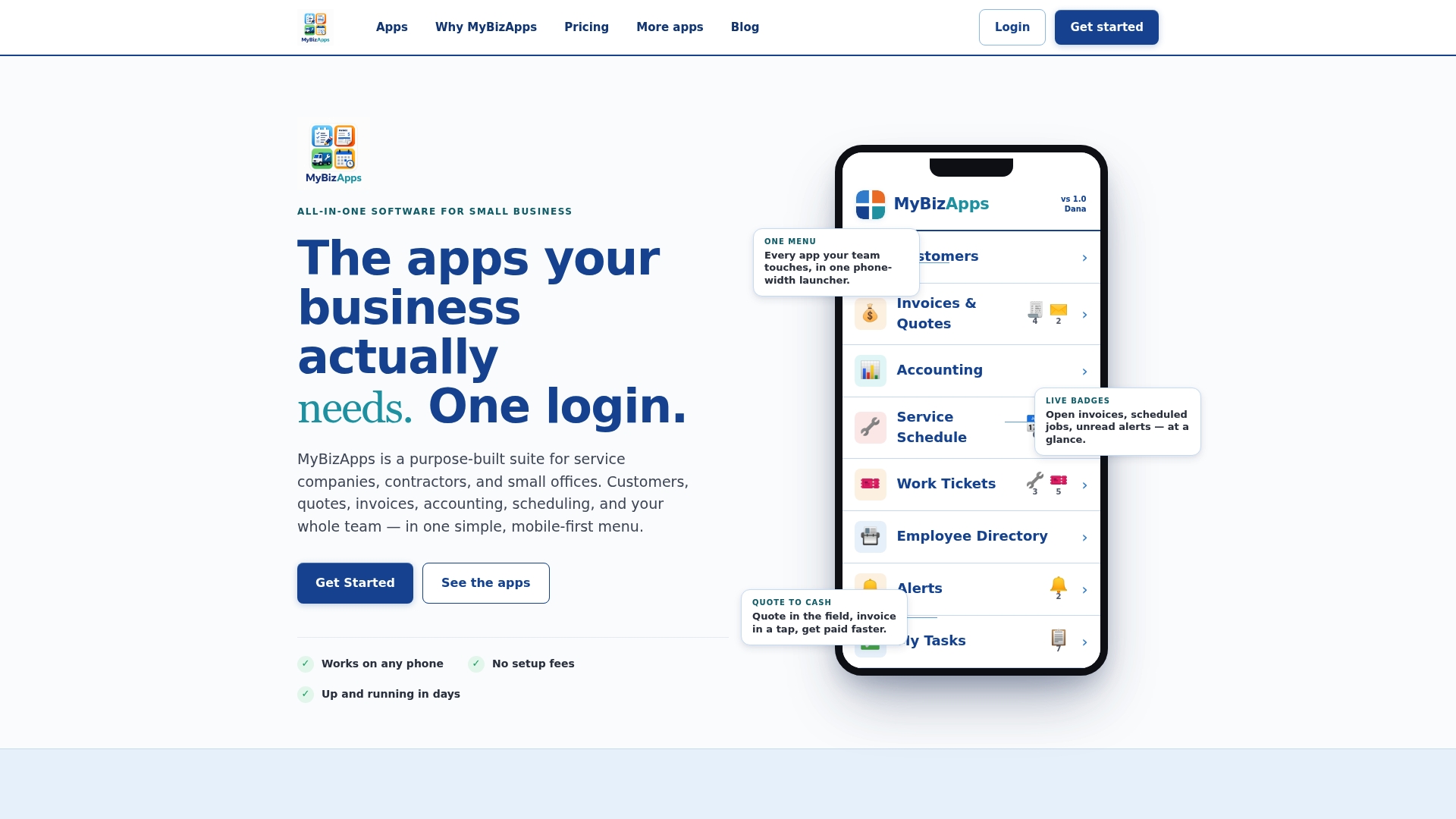
This platform is designed so a service business can run customers, quotes, scheduling and billing from one mobile-first login instead of four separate apps. Core modules including bookings, billing, scheduling, accounting and customer portal work together so a technician closing a job in the field and an office manager reconciling accounts are looking at the same records.
Before you commit to any platform, including ours, ask these questions in a demo:
- What export formats does the system support, and can we schedule automatic backups?
- Can we test a full data restore before we cancel our old systems?
- Who gets admin access, and how is that access logged for audits?
- What does a typical migration timeline look like for a business our size?
Review plan details and modules on our pricing page, or see the full feature set on our main platform page.
FAQ
What does it mean to centralize business data?
For a service company, centralizing business data means moving customer records, invoices, schedules, work tickets and inventory out of separate apps and spreadsheets into one connected system. The goal is a single source of truth that both field and office staff can access from one login.
How long does a data migration usually take?
Migration time depends heavily on how clean your existing data is before you start. Practitioners report that a well-prepared export of master data can take just a few hours, while messy or duplicated records stretch the process out considerably.
How often should I back up centralized business data?
Back up centralized data at minimum weekly, using an off-network or secondary cloud location separate from your main platform. The Small Business Administration recommends this cadence specifically because a single consolidated system becomes a bigger target if it is ever compromised.
What records does the IRS expect from an electronic system?
The IRS expects electronic accounting systems to index, store and reproduce records in a legible format, and examiners can request backup files and admin credentials during an audit, according to IRS recordkeeping guidance. Employment tax records specifically must be retained for at least four years.
What should I check before choosing a centralized platform?
Confirm the platform covers CRM, invoicing, scheduling, accounting and work tickets without requiring separate logins, and that it supports role-based admin access and multi-factor authentication. Also verify it can produce CSV or PDF exports on demand, since that capability matters both for day-to-day reporting and for audit requests.
Sources
- Strengthen your cybersecurity | SBA
- Small Business Information Security: the Fundamentals | NIST
- Automated records (Revenue Procedure) | IRS