Set Up Mobile Invoicing in One Lunch Break for Small Businesses
Set Up Mobile Invoicing in One Lunch Break for Small Businesses
Mobile invoicing setup means configuring your phone or tablet to build, send, and collect payment on invoices without ever opening a laptop. The fastest path there: connect one payment processor, build a short service catalog, and run a single test invoice all the way to a deposit in your bank account. Do that today, keep payment entry on hosted links instead of typed-in card numbers, and lock your device with a passcode before you touch a customer’s card.
TL;DR:
- Connecting a payment processor and testing a real invoice ensures timely payouts and minimizes delays during live jobs.
- Using saved customer profiles, product catalogs, and templates speeds up invoice creation and reduces errors on the go.
- Accepting payments via hosted links or NFC tap-to-pay keeps card data PCI-compliant and limits exposure to handling raw card information.
- Weekly reconciliation of deposits and payments prevents unnoticed errors and simplifies tax and bookkeeping preparation.
- Managing all invoicing, payments, and bookkeeping within a single mobile app like MyBizApps reduces manual data entry and streamlines cash flow management.
Table of Contents
- Quick Mobile Invoicing Setup Checklist
- Creating Invoices on Mobile: Required Fields and Faster Workflows
- Connecting Payments: Processors and Mobile Payment Methods
- Sending Invoices From Your Phone: Email, Text, and Links
- Managing and Reconciling Invoices After You Hit Send
- Tax and Bookkeeping Readiness for Mobile Invoicing
- Mobile Security and PCI Best Practices for Invoicing
- Why an All-In-One Mobile App Simplifies This Whole Process
- What Experienced Small Business Owners Do Differently
- Get Invoicing, Payments, and Bookkeeping Working From One App
- Sources
- FAQ
Quick Mobile Invoicing Setup Checklist
You can finish this in one sitting, probably during a lunch break. Work through it in order, because each step depends on the last one.
- Set up your business profile. Add your logo, business name, address, and default payment terms so every invoice looks consistent from the start.
- Build a basic catalog. Enter your most common services or products with set prices so you’re not typing descriptions from scratch on a job site.
- Connect a payment processor. Link a bank account, complete identity verification, and turn on at least one payment method, whether that’s a card reader, Tap to Pay, or a payment link.
- Send a real test invoice. Bill yourself or a friend a small amount, pay it, and confirm the deposit lands in your account.
- Turn on reminders and exports. Set automatic overdue reminders and check that your reconciliation or export settings match your bookkeeping routine.
Skip step 4 and you won’t find out your payout is delayed three days until a real customer is waiting on you.
Creating Invoices on Mobile: Required Fields and Faster Workflows
Every mobile invoice needs the same core information a desktop one would, just arranged for a smaller screen. According to Chase’s invoicing support guidance, a complete invoice includes:
- Customer name and contact details
- Invoice date and due date or payment terms
- Itemized services or products with quantity and price
- Applicable tax or discount amounts
- Payment instructions, including which methods you accept
- Optional notes, like job details or a thank-you line
Preview the invoice before sending, every time. A rushed invoice with the wrong line item or a typo in the customer’s email address costs you a follow-up call and a delayed payment. Check the total, the recipient, and the due date on the preview screen before you tap send.
The real time savings come from reusing what you’ve already built. Saved customer profiles, a product catalog, and templates mean you’re tapping instead of typing. Some apps even let you scan a business card or document to auto-fill a new client.
Pro Tip: Build your catalog and default tax rate before your first job, not during it. Stale presets from a rate change six months ago are how underbilling happens quietly.
Connecting Payments: Processors and Mobile Payment Methods
You can’t accept online payment until a processor is connected to a verified bank account. Here’s what that looks like in practice, based on Stripe’s guidance for mobile businesses:
- Payment links embedded in the invoice, letting the customer pay from any device
- Tap to Pay using your phone’s own NFC chip, no extra hardware needed
- QR codes printed or displayed for quick scan-and-pay
- Bluetooth card readers for a more traditional swipe or chip transaction
- Text-to-pay, sending a payment link straight to a customer’s phone
Setup requires linking your bank account and completing the processor’s identity verification, which can vary in duration and may require additional documents. Always review fee structures and payout timing carefully, as deposit times can differ between processors.
The safer default: keep card entry on the customer’s own device through a hosted payment link rather than typing numbers into your phone yourself. It’s the difference between a PCI-compliant setup and one that puts you on the hook for handling raw card data.
Sending Invoices From Your Phone: Email, Text, and Links
Choosing the right delivery method matters almost as much as getting the invoice right. Email works well for detailed invoices with attachments. Text messages get opened faster, often within minutes, which makes them ideal for time-sensitive collections. A shareable link or QR code fits in-person handoffs, like handing a customer their phone to scan and pay before they leave.
Whatever the channel, the message needs a few things to actually convert:
- A clear total amount, not buried in a PDF the customer has to open first
- The due date stated plainly
- A one-click pay link or QR code
- A recognizable business name so the charge doesn’t look suspicious on a bank statement
Set your reminder cadence once and let automation handle repeat nudges, but don’t fully hand off collections you know are sensitive, like a disputed balance. Field techs texting a link on-site and office staff emailing recurring clients are both normal patterns. Use whichever fits the moment.
Managing and Reconciling Invoices After You Hit Send
An invoice moves through predictable stages: draft, sent, viewed, paid, or overdue. Each status should trigger something on your end. A “viewed but not paid” invoice sitting for a week is your cue to send a reminder or make a call, according to Relay’s invoicing help documentation.
- Log partial payments with the date and amount, not just a mental note
- Record offline payments, like cash or check, with a reference number tying it back to the original invoice
- Process refunds through the same invoice record so your history stays accurate
- Reconcile processor deposits against invoice totals, subtracting processing fees so your books match what actually hit your bank
Pro Tip: Reconcile weekly, not monthly. A missed fee or an unrecorded refund is far easier to spot when you’re only looking at seven days of transactions instead of thirty.
Automation handles reminders and status updates well, and a system for presa in carico, documenti e incasso can help manage invoice follow-ups and payments efficiently. It doesn’t catch a typo in the original invoice, so keep a manual review before anything goes out the door.
Tax and Bookkeeping Readiness for Mobile Invoicing
Every invoice you send is a tax document waiting to be needed later. Keep invoices, receipts, payment confirmations, and processor statements in one searchable system rather than scattered across email and text threads.
- Store digital copies of every invoice and its matching payment confirmation
- Reconcile gross sales against actual deposits, keeping processor fees on a separate line so your revenue numbers aren’t inflated
- Export your invoice and payment data monthly, then run a fuller backup at year-end
- Match your invoice records to your accounting entries the way IRS Publication 334 recommends for small business recordkeeping
A bookkeeping system built around tax season rather than scrambling in March saves hours and reduces the odds of an uncomfortable audit conversation.
Mobile Security and PCI Best Practices for Invoicing
The device in your pocket is now a payment terminal, and it needs to be treated like one. Lock it down with a passcode or biometric login, keep your operating system and invoicing app updated, and avoid processing payments over public Wi-Fi at a coffee shop or job site.
- Turn on two-factor authentication for your invoicing and payment accounts
- Set role-based permissions if employees also access the app
- Never store card numbers in notes, texts, or spreadsheets; use hosted checkout pages instead
- If you take a phone order, prefer sending a payment link over typing the card number into a virtual terminal yourself
Taking card details verbally over a call raises real PCI concerns, according to Stripe’s guide on phone payments. A hosted link keeps that risk off your plate entirely, and it’s often faster for the customer too.
Why an All-In-One Mobile App Simplifies This Whole Process
Running separate apps for quoting, invoicing, payments, and bookkeeping means re-entering the same customer and job data three or four times. An integrated mobile-first platform like MyBizApps keeps quotes, invoices, payment processing, scheduling, and accounting under one login, which cuts down on double entry and the small transcription errors that come with it.
That kind of integration is also what makes reconciliation faster: when the invoice and the payment record live in the same system, matching deposits to invoices takes minutes instead of a spreadsheet marathon. Read more on how closing the quote-to-cash gap affects cash flow before deciding whether to consolidate your tools.
What Experienced Small Business Owners Do Differently
The owners who never scramble at tax time don’t rely on screenshots as records. They reconcile deposits weekly, build their service catalog before the first invoice goes out, and test one real invoice end-to-end before trusting the system on a live job.
— Philip
Get Invoicing, Payments, and Bookkeeping Working From One App
Mybizapps is the alternative to juggling three or four separate apps for quotes, invoices, payments, and scheduling. Instead of switching between a quoting tool, a payment processor’s dashboard, and a separate bookkeeping app, you manage the entire quote-to-cash cycle from one mobile-first login.
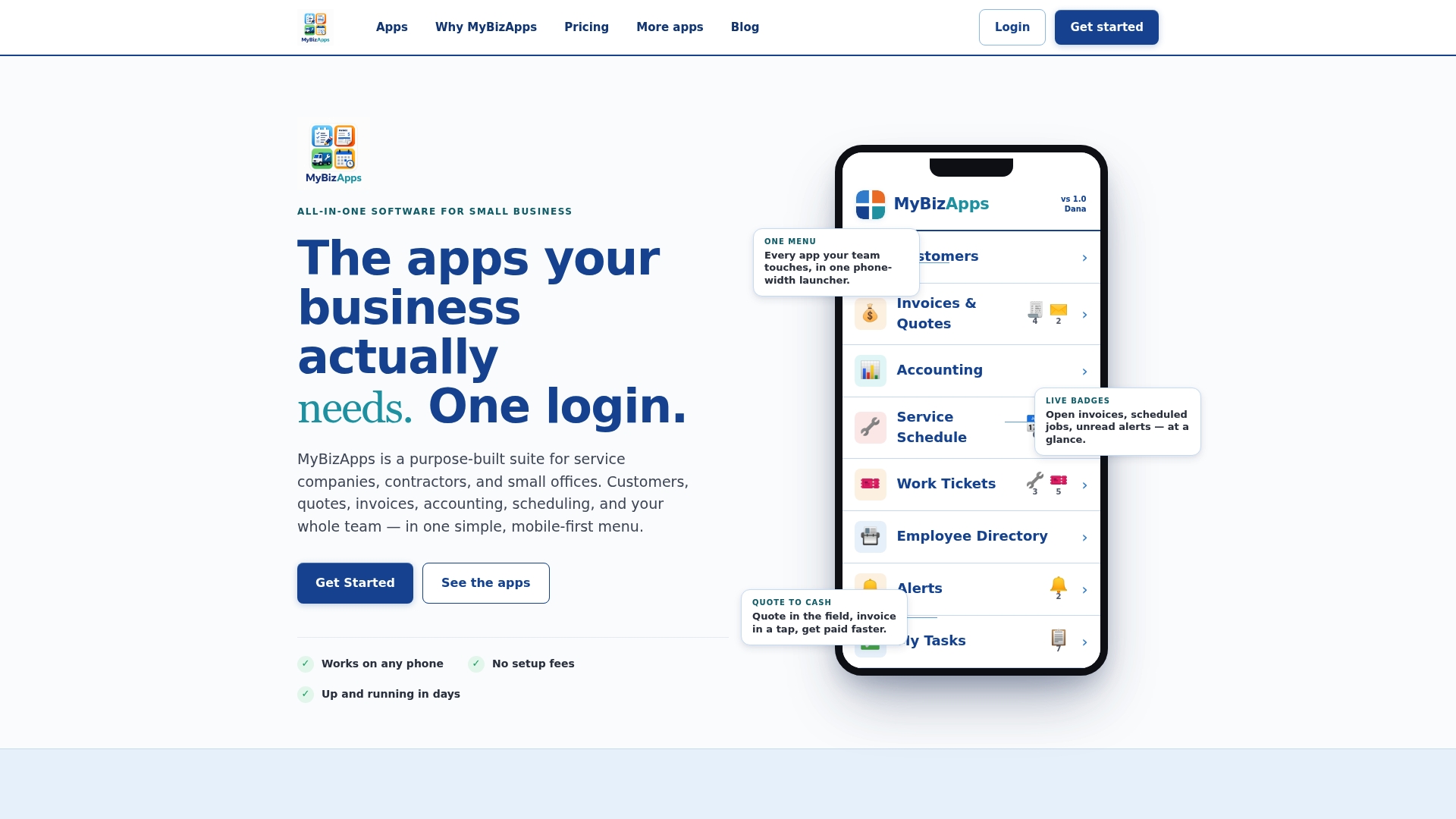
The Billing Module handles invoice creation and payment collection, while Service Scheduling and Accounting keep the rest of your operation connected without re-entering the same job details three times. Every module runs at a monthly subscription fee, and you can mix in only what your business actually needs. Check the full breakdown on the MyBizApps pricing page or browse the detailed price sheet to see which modules fit your setup, then run one test invoice through the system before switching your live jobs over.
Sources
- Chase Invoicing Support | Chase Payment Solutions Support
- How to set up payments on the go: a practical guide for mobile businesses | Stripe
- Getting Started with Relay Invoicing: Setup & Send | Relay Help Center
- IRS Publication 334
FAQ
What Is the Best Mobile App for Invoicing?
The best choice depends on whether you need invoicing alone or a system that also handles scheduling and bookkeeping. If you want quotes, invoices, payments, and accounting under one login instead of stitching together separate tools, an all-in-one platform like MyBizApps is worth testing with a sample workflow first.
Is There a Free App to Create Invoices?
Several invoicing apps offer free tiers, usually with limits on invoice volume or branding options. Check current plan details directly on the provider’s pricing page, since free tiers change often and rarely include payment processing or automated reminders.
How Do I Create an Invoice on My Phone?
Open your invoicing app, select or add a customer, enter line items with quantities and prices, then set a due date and payment terms. Preview the invoice to check totals and recipient details, then send it by email, text, or shareable link.
Can I Create an Invoice Myself Without an App?
You can build a basic invoice in a word processor or spreadsheet and email it as a PDF, but you’ll lose automatic reminders, payment tracking, and reconciliation. A dedicated invoicing app saves the most time once you’re sending more than a handful of invoices a month.