One Test Booking: Service Catalog Setup for Small Service Businesses
One Test Booking: Service Catalog Setup for Small Service Businesses

Set the name, customer-facing description, price or “starting at” figure, duration, eligible staff, and availability rules before you do anything else, then run one test booking to confirm it all works. These fields decide whether a customer can book with confidence and whether your staff shows up prepared. Skip any of them and you get vague inquiries, no-shows, or a calendar that quietly blocks itself.
TL;DR:
- Most booking issues stem from missing or incorrect host assignment, calendar conflicts, or unconfigured availability settings.
- Requiring payments or deposits at booking filters out no-shows but demands a connected payment processor like Stripe.
- Testing each service setup thoroughly, including booking, cancellation, refunds, and notifications, prevents common errors.
- Capacity limits should distinguish between slot-level and daily totals, especially for group or multi-technician services.
- Using an integrated platform reduces errors by consolidating service info, scheduling, payments, and staff routing into one record.
Table of Contents
- Quick checklist for your first service listing
- Step-by-step setup: what to enter and why it matters
- Configure availability so the offered times customers see are real
- Set payment collection, deposits, and client-change policies
- Verify the service is live and functioning
- Frequent setup errors and the simple fixes
- Author perspective and what actually makes a catalog work
- Managing service capacity limits per time slot
- User role permissions for staff managing the service catalog
- What the setup advice usually gets wrong
- Try the setup without piecing together separate tools
- Authoritative docs and resources used for setup details
- Sources
- FAQ
Quick checklist for your first service listing
Work through this list inside your admin panel before you publish anything to a live booking page.
- Name, description, category: a clear service name, a one or two line customer-facing description, and the category it sits under.
- Price and payment rule: a fixed price or a “starting at” figure, plus whether you require a deposit, full payment, or nothing at booking.
- Duration, slot interval, buffer, booking window: how long the job takes, how often slots repeat, gaps before and after, and how far ahead someone can book.
- Staff and daily limits: which employees can be assigned and how many bookings they can take per day.
- Cancellation notice and intake questions: how much notice a client needs to give to reschedule, and what you need to know before the appointment.
- Reminders and protections: email or SMS reminders and any bot protection on the booking form.
- Publish and test: push it live and book it yourself to catch anything broken.
Each of these fields maps to a setting most scheduling tools expose directly on the service record, which is also where Microsoft Bookings docs point administrators first.
Step-by-step setup: what to enter and why it matters
- Name and description. Write the service name the way a customer would say it out loud, not the way your invoice software abbreviates it. The description should answer “what happens” and “what it costs to find out,” which is also the point of treating your service menu as a pre-qualification tool: clear scope language and a price range let the wrong leads self-select out before they call.
- Pricing. Use a fixed price when the job is standard, and “Starting at” when scope varies by property size, condition, or add-ons. Requiring a deposit or full payment at booking filters out no-shows, but it also means connecting a payment processor like Stripe first.
- Duration and slot interval. Duration is how long the appointment blocks the calendar. Slot interval controls how often new booking times appear, for example every 30 minutes versus every hour.
- Buffers, notice, booking window, limits. A buffer before or after protects drive time. Minimum notice stops last-minute bookings you cannot staff. A booking window caps how far ahead someone can reserve a slot, and daily limits or quantity ranges cap how many bookings a host or slot can absorb.
- Hosts and routing. Assign only the staff qualified for that specific service, and let the system route bookings to whoever is free rather than building a separate service per technician, which is harder to keep updated.
- Location type. Note whether the service happens at your shop, the client’s address, or remotely, since this changes what the customer needs to prepare.
- Intake questions. Ask only what you need to prep the job: address, vehicle type, photo upload, or a yes/no on prior service. Mark the ones you cannot work without as required.
Pro Tip: Write your service description the way you’d explain the job to a neighbor, then cut it by a third.
Configure availability so the offered times customers see are real
A booking page can look full of open slots and still be wrong if the underlying calendar rules do not match reality. Host availability is calculated from each eligible host’s set hours, and approved time off and workspace holidays block bookings automatically, so those need to be current before you publish.
- Host calendar interactions: confirm each assigned host’s hours and approved time off are entered, not just assumed.
- Blackout dates vs. holidays vs. personal time off: these are three different settings and mixing them up is a common source of phantom availability.
- Daily limits and multi-attendee services: cap how many bookings a slot or host can take per day, and set attendee capacity correctly for group services.
- Manual vs. automatic confirmation: automatic confirmation suits standard jobs; manual confirmation gives you a chance to check capacity or staffing before locking in a slot.
External calendar syncing adds one more wrinkle: an all-day event marked “free” instead of “busy” will not block a slot, so double-check that setting on any synced Google or Office calendar.
Set payment collection, deposits, and client-change policies
Payment settings decide how much risk you carry between booking and the actual appointment. You can require no payment, a deposit (fixed amount or percentage), or full payment up front, but each option beyond “no payment” needs a connected processor.
- No payment: fastest to book, but the easiest to no-show.
- Deposit or full payment: filters out low-intent bookings, requires Stripe or a similar processor connected first.
- Refund triggers: typically fire on team cancellation, a client cancellation inside your stated policy window, or a declined charge.
- Cancellation and reschedule notice: the minutes or hours you set here directly limit how late a client can change plans without penalty.
A payment hold on a booking typically expires and releases the slot within 30 minutes if the client does not complete payment, which matters if you are wondering why a slot that looked booked suddenly reopened.
Reference pricing templates on the MyBizApps price sheet if you need a starting point for structuring deposits against your own service pricing.
Verify the service is live and functioning
Testing catches the gap between what you configured and what a customer actually sees.
- Publish the service and open the booking page in a private or incognito browser window.
- Check that the name, duration, price, available times, and intake questions all display correctly.
- Make a real test booking, complete the payment if one is required, then cancel or decline it to confirm refunds and queue behavior work as expected.
- Confirm the assigned host got a notification, the appointment landed on their calendar, and the booking shows up in your booking queue or work tickets.
Do this every time you add a service or change a major rule, not just once at launch.
Frequent setup errors and the simple fixes
Most booking problems trace back to one of five causes.
- No available times show up: usually no eligible host is assigned, or a calendar rule conflicts with the service’s own hours.
- Customers can’t complete payment: the payment processor is not connected, or the service is set to require payment without one linked.
- Double bookings appear: missing buffers, or an external calendar event marked free instead of busy.
- Intake answers go missing: the field type is wrong, or a question meant to be required was left optional.
- Customers keep asking “how much will this actually cost”: the price is not published, or a “Starting at” label is missing where scope varies.
Pro Tip: When a service shows zero open times, check host eligibility first. It is the most common cause and the fastest to fix.
Author perspective and what actually makes a catalog work
The setup problems above are rarely about software limitations. They are almost always missing information: no host assigned, no processor connected, no buffer set.
MyBizApps offers an all-in-one software solution built for service companies, contractors, and small offices, folding customer management, quotes, invoices, accounting, and scheduling into one mobile-first interface. That single login means a technician in the field and an office manager at a desk are looking at the same booking record, not two versions of it. Users report faster invoicing and payment processing as a result of not re-entering the same job details across separate tools, which can lead to improved cash flow.
A service catalog is only as reliable as the calendar and payment rules behind it. Get those right once, and the booking page takes care of itself.
— Philip
Managing service capacity limits per time slot
Capacity limits decide how many bookings a single slot or host can absorb before the calendar marks it full. A one-on-one service, like a private consultation, should cap at one booking per slot per host. A group service, like a class or shared equipment rental, needs an attendee capacity set on the service itself, not just a limit on the calendar day.
Daily limits work at a different level than slot capacity. You might allow one host to take six bookings a day total, spread across open slots, while still capping each individual slot at one client. Getting these two settings confused is a common reason a service looks available in the morning and locked out by early afternoon even though the calendar looks empty.
For multi-technician teams, set capacity at the host level and let the system route new bookings to whichever eligible technician has room, instead of hard-coding a fixed number of slots per person. This keeps the catalog accurate as staff schedules shift week to week, and it avoids the maintenance burden of rebuilding limits every time someone’s availability changes.

Review capacity settings any time you add a new host, retire a service variant, or notice a slot filling faster than your team can actually deliver the work.
User role permissions for staff managing the service catalog
Not everyone on your team needs the same level of access to the service catalog. An office manager who sets pricing and policy needs full edit rights, while a technician who just needs to see their own bookings does not need the ability to change a price or delete a service.
Most scheduling tools split this into a few permission tiers: full admin access for owners and managers, edit access for staff who update their own availability or intake answers, and view-only access for staff who just need to see what is on their calendar. Setting these correctly prevents two common problems: a well-meaning employee accidentally changing a price everyone else relies on, and a client-facing detail going stale because no one had permission to fix it.
Review who has edit access at least once a quarter, especially after hiring, role changes, or adding a new service category. A small service business with three or four staff can usually get by with two tiers, admin and staff, but any team running multiple locations or service lines benefits from a third, view-only tier for anyone who just needs visibility without edit rights.

What the setup advice usually gets wrong
Most guidance on this topic treats the service catalog like a one-time form to fill out. It is not. The fields that break a booking flow, host eligibility, calendar sync, payment holds, are the ones that drift out of date fastest, usually because a staffing change or a new processor integration happened somewhere else in the business and nobody circled back.
The overrated advice is spending hours perfecting service descriptions before anything is tested live. A well-written description on a service that shows zero available times helps no one. The underrated move is testing early and testing often: book it, cancel it, check the refund, confirm the host got notified, and do that again every time a rule changes.
If you take one thing from this: build the calendar and payment logic first, write the customer-facing polish second, and treat every new hire or processor change as a trigger to retest, not an afterthought.
— Philip
Try the setup without piecing together separate tools
Everything covered here, service fields, availability, payments, staff routing, lives on one record inside MyBizApps instead of scattered across a booking widget, a separate invoicing app, and a spreadsheet for staff schedules. That means a booking flows straight into a work ticket and then into an invoice without anyone re-typing the job details.
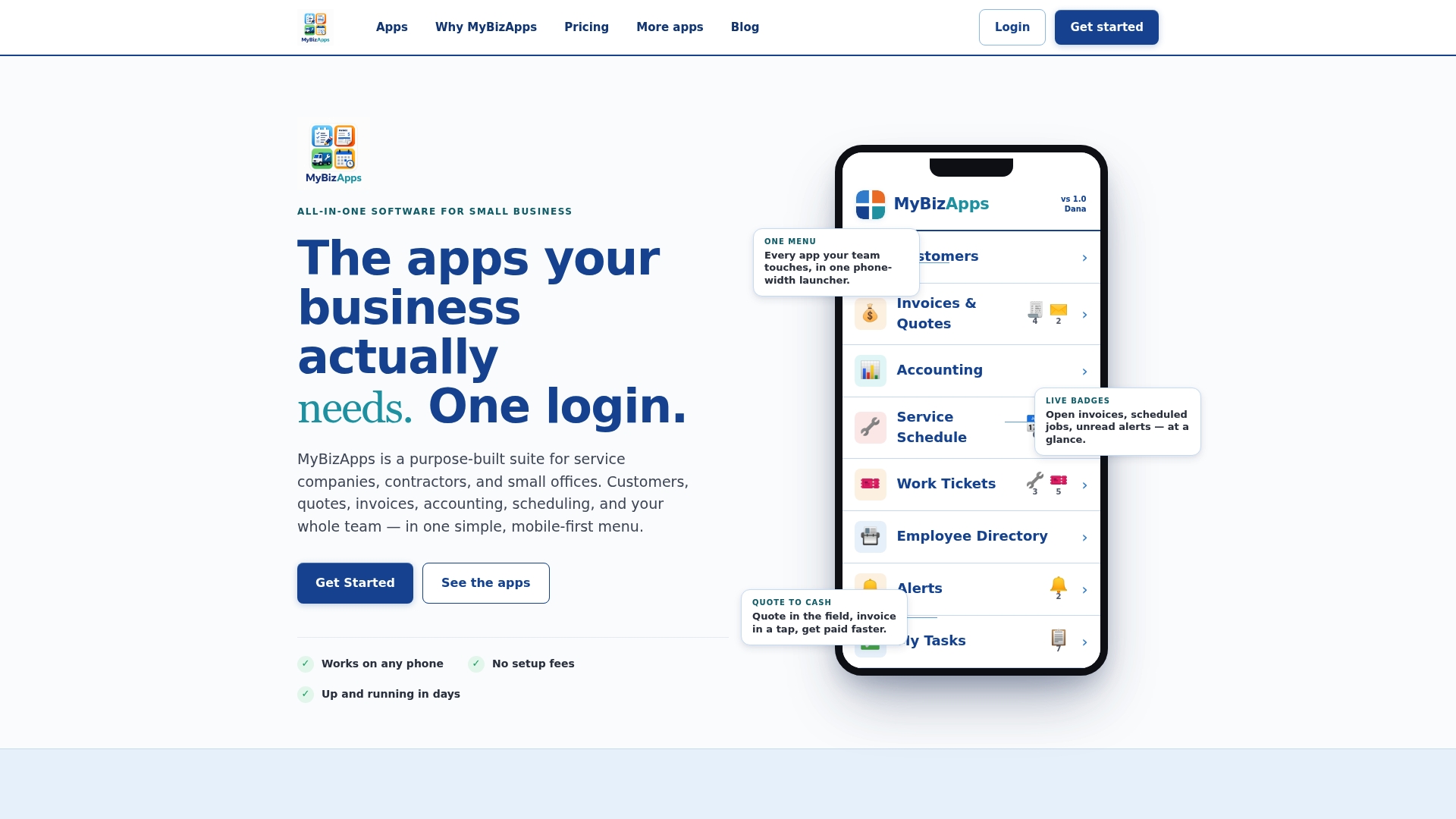
If you are setting this up for the first time, start with the Service Scheduling and Bookings modules and add the Billing Module when you are ready to collect deposits or full payment at booking. Check current plans and modular add-ons on the MyBizApps pricing page and pick the combination that matches how your team already works.
Authoritative docs and resources used for setup details
- Workspace369’s booking configuration docs cover granular field-by-field booking rules and payment hold behavior.
- Microsoft Bookings documentation lists standard service fields and platform limits.
- The Small Business Administration offers free counseling and training for owners scaling their service offerings.
Sources
- Configure a service for online booking | Workspace369 Docs
- Define service offerings — Microsoft Bookings docs
- Small Business Administration — Homepage
FAQ
What fields does a service need before it can go live?
A bookable service needs a name, customer-facing description, price or starting price, duration, at least one eligible host, and availability rules. Skipping the host assignment is the most common reason a published service shows no open times.
How does a payment hold affect an unfinished booking?
When payment is required at booking, the slot is typically held for a short window, often around 30 minutes (see documentation for current timing), while the client completes payment. If payment fails or times out, the hold expires and the slot releases back to the calendar.
Should I use a fixed price or “Starting at” pricing?
Use a fixed price when the job scope is standard and predictable, and “Starting at” when the final cost depends on details like size, condition, or add-ons. Pairing “Starting at” with a short intake question about scope helps pre-qualify the lead before they book.
Why does my service show no available booking times?
The most common cause is that no eligible host is assigned to the service, or an assigned host’s calendar has a conflicting time-off or holiday rule. Check host eligibility first, then confirm any synced external calendar events are marked busy rather than free.
Can MyBizApps handle service scheduling and invoicing together?
Yes, MyBizApps connects customer management, scheduling, invoicing, and accounting under one login, so a completed booking can flow directly into a work ticket and invoice. Plans for Bookings and the Billing Module are listed on the MyBizApps pricing page.