Stop Double Bookings: Step by Step Mobile Sync for Small Service Teams
Stop Double Bookings: Step by Step Mobile Sync for Small Service Teams

The fastest way to keep booking and staff calendars in sync is to turn on availability checks in your booking tool, whether that’s Google appointment schedules or Microsoft Bookings, confirm every staff calendar is shared correctly, and run a create, cancel, reschedule test before you trust it. Subscription tier often limits which calendars get checked. Teams that would rather skip the setup work can centralize scheduling in an all-in-one platform like MyBizApps instead.
TL;DR:
- Ensuring all staff calendars are properly shared and enabled is crucial for reliable real-time availability checks and avoiding double-bookings.
- Google appointment schedules require paid Google Workspace plans for multi-calendar checks, while Microsoft Bookings demands shared calendar access with proper settings.
- Subscribing to calendars via iCal feeds is quick but slow to update, making it unsuitable for fast-paced dispatch teams.
- Regular testing—creating, canceling, and rescheduling bookings—can catch sync issues caused by permissions or license changes before they impact customers.
- Using an all-in-one platform like MyBizApps simplifies scheduling, reduces integration maintenance, and improves staff coordination through a single mobile login.
Table of Contents
- Why synced booking calendars matter for small service teams
- Core methods to sync booking calendars for small businesses
- Step-by-step checklist to set up and verify synced calendars
- Common sync problems and troubleshooting steps
- Testing and maintenance best practices to keep sync reliable
- Author perspective: pragmatic priorities for small teams
- How MyBizApps centralizes scheduling and reduces sync friction
- Official docs and community guidance to reference
- Sources
- FAQ
Why synced booking calendars matter for small service teams
A missed booking costs more than one appointment. A contractor who shows up to a double-booked slot loses the drive time, the customer’s trust, and often the job itself. For field teams, a scheduling conflict can mean two trucks converging on the same address while a third customer waits with no one assigned.
Getting calendars to talk to each other correctly pays off in three concrete ways:
- Fewer double-bookings mean fewer refunds, apologies, and rescheduled visits.
- Real-time availability checks cut the back-and-forth calls needed to confirm a slot is actually open.
- Synced schedules speed up invoicing, since office staff can bill a job the moment it’s marked complete instead of waiting for a manual update.
Availability checking across every relevant calendar is the practical control that prevents most of this. Everything else, from buffer times to reminder emails, is a refinement on top of that basic check.
Core methods to sync booking calendars for small businesses
Most small service businesses land on one of four approaches, and each one trades simplicity for control differently.
Google appointment schedules check your primary calendar automatically and can check secondary calendars too, but only when you turn on “Check calendars for availability” in the booking page settings, according to Google’s setup documentation. Booked slots then show up on your calendar directly and can’t be double-booked once that setting is active, per Google’s guide to editing appointment schedules. The catch is licensing: checking multiple calendars, running more than one booking page, or accepting payments through Stripe are features tied to eligible Google Workspace or Google One plans, not free personal accounts, as Google notes in its feature comparison.
Microsoft Bookings pulls free/busy data from Outlook and Exchange, but only works correctly once you enable “Events on Microsoft 365 calendar affect availability” and each staff member shares their calendar, according to Microsoft’s Bookings FAQ. Bookings itself is bundled into specific Microsoft 365 and Office 365 plans rather than sold as a standalone app, so availability depends on which license your business already has.
Calendar subscriptions (iCal feeds) are the simplest option and the weakest one. A subscribed calendar shows events as read-only and updates on a delay, sometimes hours. That’s tolerable for a solo bookkeeper checking their own agenda. It fails fast for a dispatch-heavy team where a canceled job needs to free up a technician’s slot within minutes, not by the next sync cycle.
Middleware connectors or an all-in-one platform solve the same problem from opposite directions. Custom API integrations between your booking page, calendar, and invoicing tool give you flexibility but require ongoing maintenance every time one vendor changes its API. A centralized platform like MyBizApps instead keeps bookings, staff schedules, and dispatch under one mobile-first login, which removes the multi-vendor stitching entirely for teams that would rather not manage integrations at all.

Step-by-step checklist to set up and verify synced calendars
Before touching any settings, list every calendar your business actually uses: the shop calendar, each technician’s personal calendar, and any shared team calendar. Confirm your Google Workspace or Microsoft 365 subscription tier, since that determines which features are even available to you.
- Choose your primary and secondary calendars. Decide which calendar is the source of truth for bookings and which ones are supporting staff calendars.
- In Google appointment schedules, turn on “Check calendars for availability” and add the secondary calendars you want checked, per Google’s instructions.
- In Microsoft Bookings, add each staff member, enable “Events on calendar affect availability,” and confirm every staff member has shared their free/busy status, as outlined in Microsoft’s staff setup guide.
- Create a test booking and confirm the email and .ics calendar entry both arrive correctly.
- Run the realistic path test: create a booking, cancel it, then reschedule the same slot in both directions the same day, a method scheduling communities recommend specifically because cancellations and reschedules expose failures that simple creation tests miss.
- Set buffer time and maximum bookings per day so back-to-back jobs don’t overload a single technician.
Pro Tip: Test the cancellation path before you launch, not after your first real customer cancels and finds the slot still marked busy.
Once the basics work, layer on reminder cadence and add any co-hosts who need visibility into the same bookings.
Common sync problems and troubleshooting steps
Most sync failures trace back to permissions rather than the software itself.
- Calendar sharing errors: if a staff member hasn’t set their calendar to “Can view when I’m busy,” Bookings can’t see their free/busy status and will show them as available when they aren’t, a fix Microsoft lists directly in its troubleshooting guide.
- Hidden or unpublished schedules: a booking page can look empty of open slots simply because the scheduling window hasn’t been set, not because the calendar is actually full.
- “This staff member’s calendar can’t be synced” errors: work through sharing settings first, then role assignments, then confirm Bookings itself is enabled for your organization.
- Staff outside your Microsoft tenant: external staff can’t share free/busy data with Bookings directly. Use a shared team calendar owned by the tenant instead, or adjust their role.
- Licensing limits: a personal Google account can run one booking page and check only the primary calendar, while multi-calendar checks and multiple pages require an eligible Workspace or Google One plan.
Work through sharing, then licensing, then settings, in that order, before assuming the integration itself is broken.
Testing and maintenance best practices to keep sync reliable
Sync that works on day one can quietly break the day a staff member changes a permission or your subscription renews on a different tier. A short monthly routine catches that before a customer does.
- Run a sample booking, cancellation, and reschedule on each calendar you rely on.
- Audit calendar sharing settings for every staff member, since permissions get reset more often than owners expect.
- Repeat the realistic path test: create, cancel, then reschedule in both directions, the same check that exposes where delete and update flows actually fail.
- Keep a simple change log noting who touched calendar settings and when, with one person named as the schedule owner.
Pro Tip: Confirm the .ics file and confirmation email arrive correctly, not just that the booking appears on the calendar. Notifications are usually the first thing to silently fail.
Author perspective: pragmatic priorities for small teams
The integrations get most of the attention, but the real failure point is usually a staff member who forgot to accept a shared calendar invite six months ago. Consistent staff behavior and one named schedule owner will save a small business more headaches than any additional plugin.
For field teams juggling trucks and technicians, centralizing scheduling under one mobile-first login removes the coordination problem instead of managing around it. When that isn’t practical, pick the two or three flows most likely to break, cancellations and reschedules usually top the list, and test them on a schedule instead of hoping they hold.
— Philip
How MyBizApps centralizes scheduling and reduces sync friction
If stitching together booking pages, staff calendars, and invoicing across separate tools sounds like more upkeep than it’s worth, a centralized platform can run bookings, service scheduling, and dispatch under a single mobile-first login instead. Staff see the same schedule whether they’re in the office or standing at a job site, and a completed booking can move straight into billing without a manual handoff.
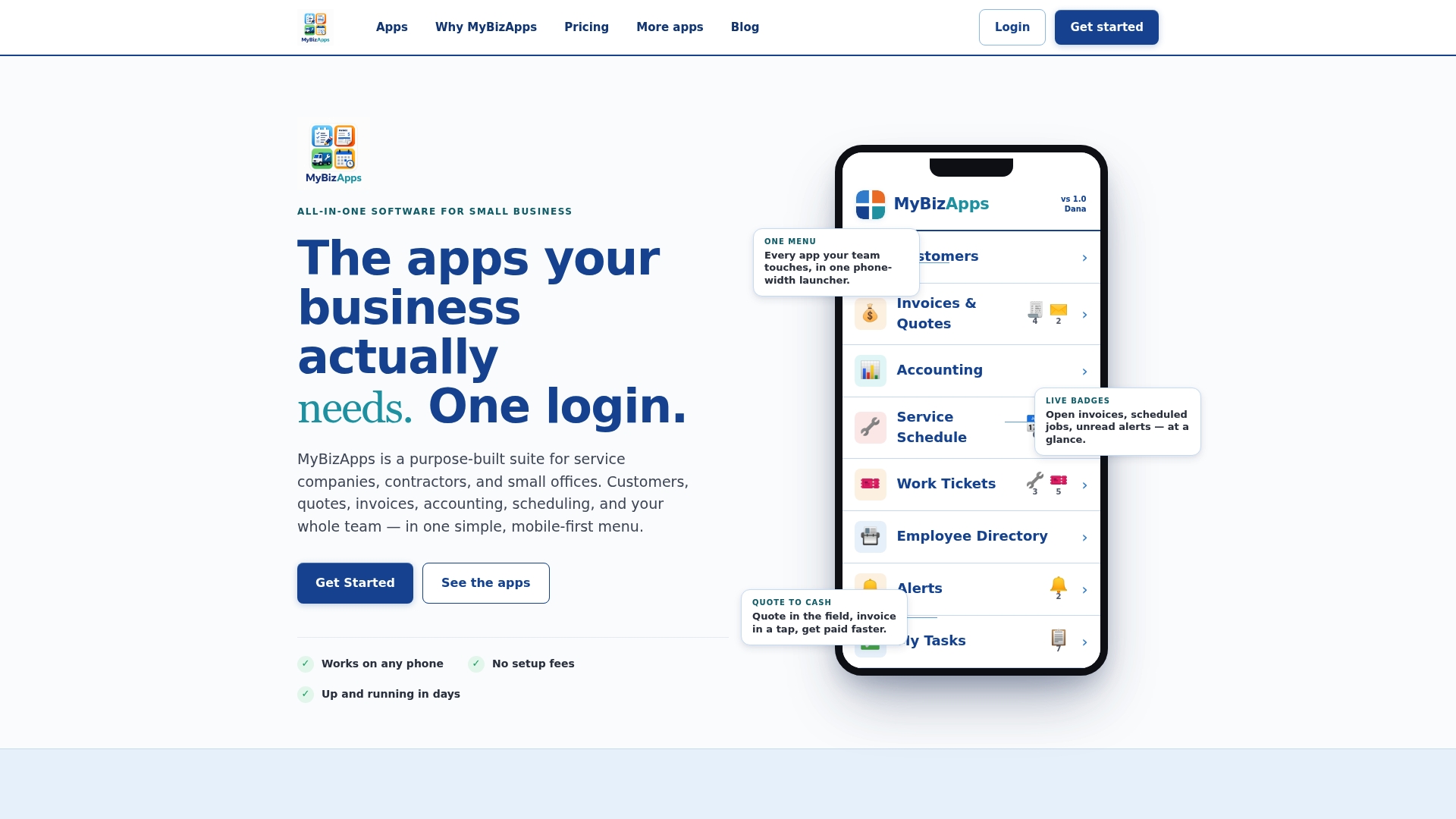
That single-login structure replaces the usual juggling act: no more checking three calendars to confirm a technician is free, and no more re-entering a job into a separate invoicing tool once it’s done. Ad-hoc requests become tracked work tickets automatically instead of getting lost in a shared inbox.
See what’s included on the MyBizApps pricing page, where Bookings and Service Scheduling are each available for $21 per month, or check the full price sheet before you decide.

Official docs and community guidance to reference
For setup details straight from the source, keep these bookmarked:
- Google’s appointment schedule guide covers availability checks and booking-page settings.
- Microsoft’s Bookings FAQ explains licensing and the calendar-sharing requirements Bookings depends on.
- If you’re building a booking page into your own site, Macrolight Builder’s guide for service businesses covers embedding booking links cleanly.
Sources
- Create an appointment schedule - Google Calendar Help
- Shared Bookings Frequently Asked Questions | Microsoft Learn
- Add staff to Bookings - Microsoft Docs (GitHub mirror)
- Community scheduling testing tip (create/cancel/reschedule)
FAQ
How do I sync a booking calendar with staff schedules?
Turn on availability checking in your booking tool (Google’s “Check calendars for availability” or Microsoft Bookings’ “Events on calendar affect availability”), then confirm each staff member has shared their calendar. Run a test booking followed by a cancellation and reschedule to confirm it actually updates in real time.
Why isn’t Google Calendar checking my secondary calendar?
The setting has to be turned on manually under your appointment schedule’s availability options, and checking more than your primary calendar may require an eligible Google Workspace or Google One plan rather than a free personal account. Confirm the secondary calendar is added and shared correctly before assuming the feature is broken.
Why does Microsoft Bookings show a staff member as available when they’re not?
This usually means the staff member hasn’t shared their calendar or the “Events on Microsoft 365 calendar affect availability” setting hasn’t been enabled, according to Microsoft’s Bookings documentation. Staff outside your Microsoft tenant can’t share free/busy data directly, so a shared team calendar is the usual workaround.
What’s the best way to test if calendar sync actually works?
Create a booking, cancel it, then reschedule the same slot in both directions on the same day. Scheduling communities point to this as the test that reveals failures in cancellation and update flows that a simple new-booking test never catches.
Can MyBizApps replace separate calendar sync tools?
MyBizApps keeps bookings, service scheduling, and staff dispatch under one login, so most businesses no longer need to sync separate calendar tools at all. Service Scheduling and Bookings are each listed at $21 per month on the MyBizApps pricing page.