5 Daily Habits Managers Use to Track Work Orders
5 Daily Habits Managers Use to Track Work Orders
The reliable way to track work orders is to standardize intake, run every job through a mobile-first digital system that links to asset history, and review a small set of KPIs weekly. Done right, this gets you real-time visibility into every open job and cuts the number of requests that fall through the cracks.
TL;DR:
- Standardizing work order statuses and capturing detailed asset history are essential to prevent data gaps that reduce first-time fix rates.
- Categorizing jobs into preventive, corrective, inspection, and emergency ensures response times and KPIs accurately reflect operational realities.
- Automating preventive work orders from schedules and maintaining mobile, offline-capable updates significantly improves tracking consistency and response efficiency.
- Regular weekly routines focusing on backlog grooming and KPI review help catch process deviations early and prevent long-term accumulation of unaddressed issues.
- The most critical factor in successful tracking is enforcing discipline on job closure with thorough documentation, not just relying on the software tools themselves.
Table of Contents
- What Does It Mean to Track Work Orders?
- Why Tracking Work Orders Matters for Operations and Maintenance
- What Types of Work Orders Should You Track?
- Key Features Your Work Order Tracking System Needs
- Which KPIs Actually Tell You How Your Work Orders Are Performing?
- How Do You Actually Track Work Orders Day to Day?
- How Should You Choose and Roll Out a Tracking System?
- How MyBizApps Handles Work Order Tracking in Practice
- Ready to Put This Into Practice?
- Where to Learn More About Work Order Tracking
- The Part Nobody Tells You About Work Order Tracking
- Sources
What Does It Mean to Track Work Orders?
Tracking work orders means monitoring every job from the moment someone reports a problem to the moment it’s closed out and documented. That sounds simple until you realize most operations blur the line between a request and an actual work order.
A work request is the raw ask: “the walk-in cooler is making noise.” A work order is what happens after someone reviews that request, decides it’s legitimate, assigns it a priority, and turns it into a trackable job with an owner and a deadline. Not every request becomes a work order, and treating them as the same thing is where a lot of tracking systems break down.
Most work order lifecycles move through similar stages, even if the labels differ between industries:
- Submitted or requested — the initial report, before anyone has validated it, approved or scheduled when reviewed and assigned, in progress during active work or diagnostics, on hold when waiting on parts or approval, completed when work is finished but pending review, and closed once verified and documented
Standardizing these status values across your team matters more than it sounds. If one technician marks a job “done” and another marks the same stage “completed,” your reports will lie to you. Pick one vocabulary, write it down, and enforce it.
Why Tracking Work Orders Matters for Operations and Maintenance
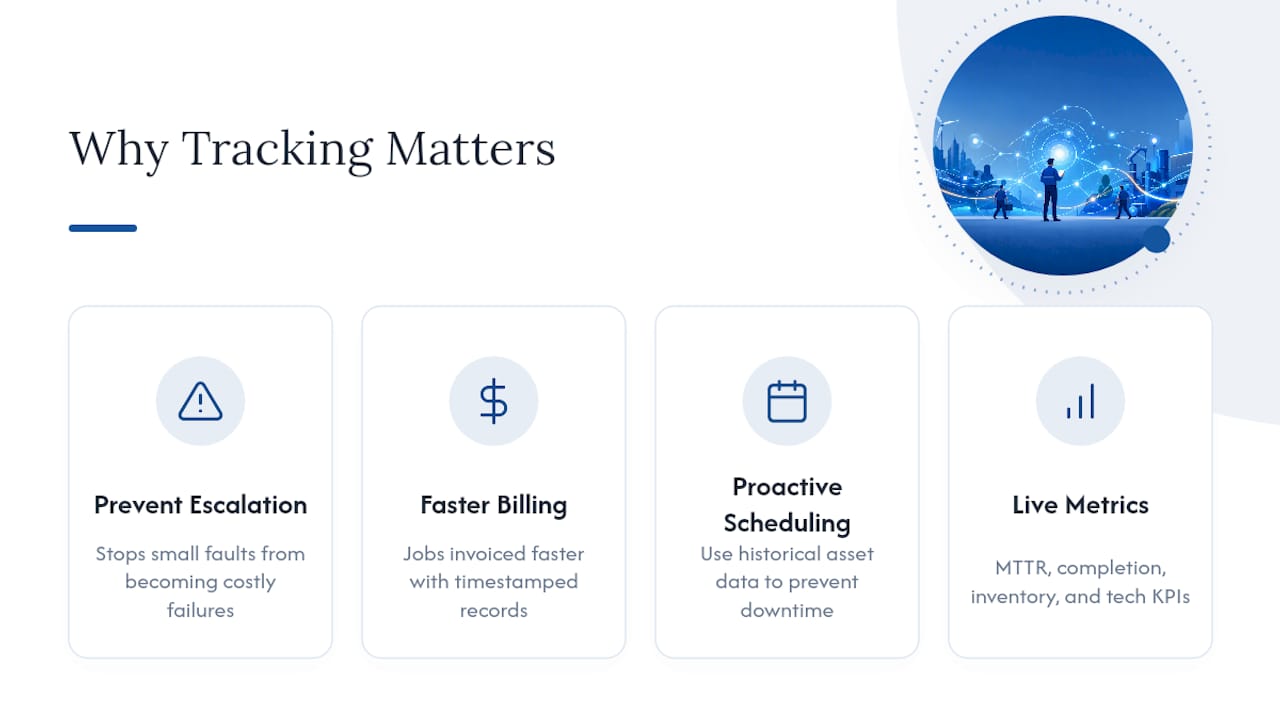
Untracked work orders are how small problems become expensive ones. A leaking valve that sits in someone’s inbox for three weeks because nobody logged it becomes a flooded storage room. Tracking converts invisible backlog into visible, prioritized work.
The financial case is straightforward. Teams that track work orders consistently invoice faster because completed jobs are documented the moment they’re closed, not reconstructed from memory a week later. Rework drops too, since technicians can see what was already tried on a piece of equipment instead of repeating diagnostic steps.
There’s also a shift happening industry-wide from reactive firefighting to proactive scheduling. Using historical asset data to schedule preventive work orders before something fails is now considered standard practice for reducing unplanned downtime, and none of that works without a tracking system that actually captures the history in the first place.
Modern dashboards give managers something reactive spreadsheets never could: a live view of MTTR, completion rates, inventory consumption, and technician performance all in one place. That visibility is what you show a stakeholder asking “why does the maintenance budget keep growing” — a timestamped log beats a verbal explanation every time.
What Types of Work Orders Should You Track?
Lumping every job into one generic “work order” bucket wrecks your reporting. Four categories cover most operations:
- Preventive — scheduled maintenance based on time or usage, such as regular HVAC filter changes
- Corrective — fixing something that’s already broken but isn’t an emergency, like a slow-draining sink
- Inspection — routine checks that may or may not generate follow-up work, like a monthly fire extinguisher audit
- Emergency — anything that stops operations or creates a safety risk, like a burst pipe or a down production line
Categorizing correctly isn’t busywork. If your emergency work orders and your routine corrective jobs get mixed together, your average response-time metric becomes meaningless. A single emergency skews your data, and a backlog of low-priority corrective jobs makes your team look slower than it actually is.
Key Features Your Work Order Tracking System Needs
Not every feature matters equally. Here’s what actually moves the needle operationally.
Digital intake with standardized forms. Every work order should capture the same required fields: location, asset, priority, description, and requester contact. A standardized web form or QR code at the equipment beats phone calls and hallway conversations that never make it into the system.
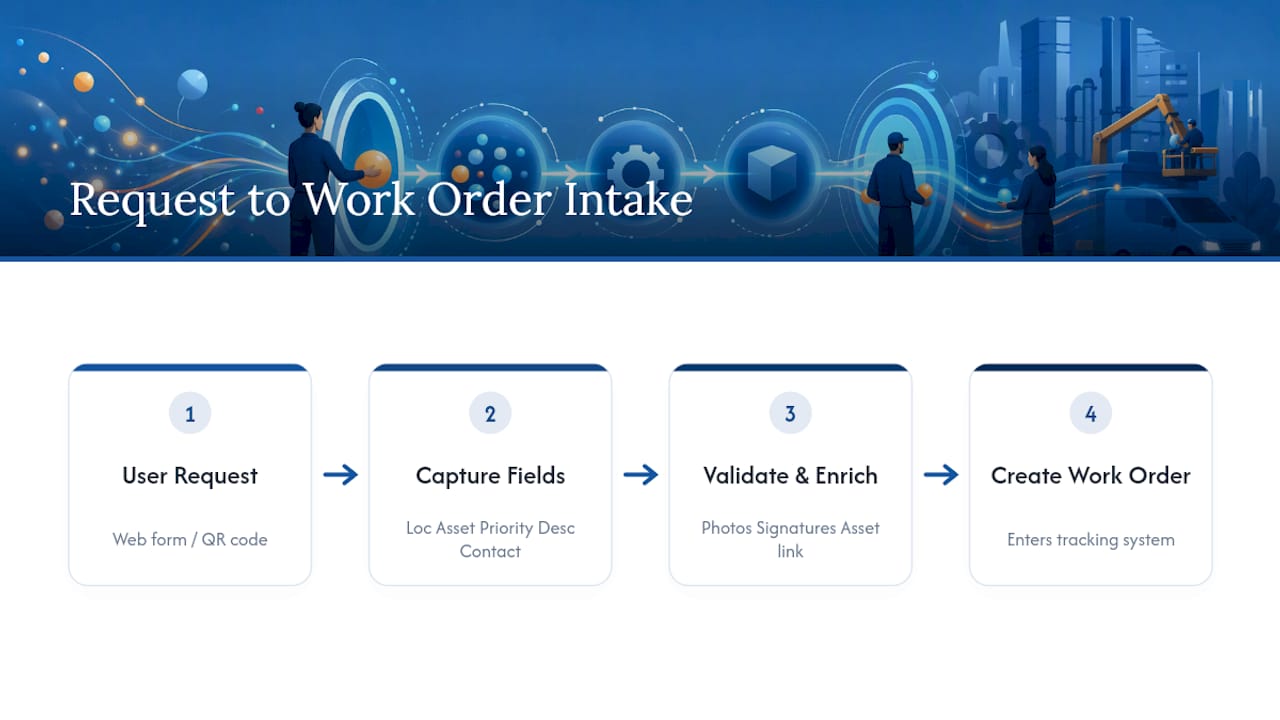
Mobile-first field updates. Technicians shouldn’t have to return to an office to update a job’s status. Field-focused tools increasingly build in offline-capable apps and read-only status links so requesters can check progress without calling anyone, and techs can log updates even where signal drops out. Photos and digital signatures at closeout create a record that protects both the technician and the business.
Dispatch and scheduling logic. Skills-based assignment, route awareness, and ETA notifications keep jobs moving to the right person instead of sitting in a shared queue nobody owns. If you’re managing HVAC or similar trade work specifically, dispatch tools built for field service, like JobOS Pro’s HVAC software, show how routing and asset history work together for trade-specific scheduling.
Asset and inventory linkage. A work order that’s tied to a specific asset record carries its full repair history forward. Systems built this way prevent the information gaps that tank first-time-fix rates and leave you with incomplete documentation six months later.
Reporting and dashboards. You need KPI visibility without building a spreadsheet from scratch every Monday.
Pro Tip: If you only automate one thing this quarter, automate preventive work order creation from your maintenance schedule. Manually remembering to create recurring jobs is a common reason preventive maintenance programs quietly fail.
Which KPIs Actually Tell You How Your Work Orders Are Performing?
Four numbers tell you almost everything about the health of your work order process. None of them require special software to calculate, just consistent data.
| KPI | How to calculate it | What it signals |
|---|---|---|
| MTTR (Mean Time to Repair) | Total repair time ÷ number of repairs | How fast your team resolves issues once work starts |
| Completion rate | Completed work orders ÷ total work orders in period | Whether your team is keeping pace with demand |
| Backlog size | Count of open, unassigned, or overdue work orders | Whether you’re understaffed or your intake process is broken |
| Cycle time | Time from submission to closeout | End-to-end speed, including wait time before work even begins |
Each metric alone tells a partial story. A low completion rate paired with a high backlog usually means you don’t have enough hands. But a low completion rate with a manageable backlog often points to a process problem, like unclear assignment rules or technicians waiting on approvals that never come.
Watch cycle time against MTTR specifically. If MTTR looks fine but cycle time is climbing, the actual repair work isn’t the bottleneck. Something upstream, usually triage or approval delays, is the real drag on your operation.
How Do You Actually Track Work Orders Day to Day?
The gap between a tracking system existing and a tracking system working comes down to five habits, in this order.
-
Standardize capture. Every work order enters through one of a few defined channels, a web form, a monitored email inbox, or a QR code at the asset, and every entry requires the same core fields before it’s accepted as valid. Give requesters a status link so they stop calling for updates.
-
Set assignment and triage rules in advance. Decide priority mapping before the emergency happens, not during it. Auto-assign routine jobs by skill or zone, and build an escalation rule so a job that sits untouched for a set number of hours automatically flags a supervisor.
-
Build field execution around checklists, not memory. Every job type should have a short checklist covering parts used, time spent, and required photos. This is also where offline handling matters most, since a technician in a basement or a rural site can’t wait for signal to log that a part was swapped.
-
Close out with documentation, not a status flip. Closing a work order should require confirming completion criteria, updating the asset’s maintenance history, and attaching whatever documentation the job needs for an audit or an invoice. A job marked “closed” with no notes is a job you’ll have to re-investigate later.
-
Run weekly routines. A fifteen-minute KPI review and backlog grooming session catches drift before it becomes a crisis. If you’re testing a process change, pilot it on one team or one asset category first rather than rolling it out everywhere at once.
Pro Tip: Backlog grooming works best as a standing calendar event, not an ad hoc task. Teams that treat it as optional let three overdue jobs quietly become thirty.
How Should You Choose and Roll Out a Tracking System?
Picking a tool is the easy part. Most vendors offer similar core features. What separates a good fit from a bad one is matching the tool to how your team actually works.
Run through this checklist before committing:
- Does it support mobile field updates and offline mode, not just a mobile-friendly webpage?
- Does it link work orders to asset records and maintenance history automatically?
- Are reporting and dashboards built in, or do you need a separate analytics tool?
- Does it integrate with your existing accounting or invoicing system?
- Is pricing based on unlimited requester seats, or does every person who submits a request cost you a paid license?
| Rollout stage | What to do | Why it matters |
|---|---|---|
| Pilot scope | Run one team or building for a month | Surfaces workflow gaps before full rollout |
| Data cleanup | Clean up asset and parts lists before import | Bad data in means bad reporting out |
| Status mapping | Map your old statuses to the new system’s fields | Prevents confusion during the transition |
| Training | Train on real jobs, not demo data | Builds confidence faster than a generic tutorial |
| Go-live KPIs | Set a baseline before flipping the switch | Gives you something to measure improvement against |
The most common pitfall is over-customization before go-live. Teams spend six weeks configuring every possible field and workflow rule, then launch with a system nobody understands. The second most common mistake is a weak intake channel. If submitting a request is harder than sending a text message, people will go around your system entirely, and your tracking data will be incomplete from day one. For low-cost, self-hosted alternatives, platforms like osTicket or Request Tracker let small teams route requests through email and web forms without a subscription, though you’ll need someone comfortable with configuration to bolt on asset history and inventory tracking.
How MyBizApps Handles Work Order Tracking in Practice
Most tracking failures happen at the handoffs, when a request moves from phone call to spreadsheet to invoice, and details get lost between systems. Mybizapps was built around collapsing those handoffs into one login, so scheduling, work tickets, invoicing, and customer history all live in the same place.
The pattern shows up in how everyday requests get handled. Mybizapps has documented turning an informal “can you take a look at this?” into a tracked work ticket, which is exactly the request-to-work-order conversion this article covers, just applied to a real service business. The same logic applies to scheduling field technicians without double-booking the truck, since dispatch only works if the person assigning jobs can see everyone’s calendar in real time.
Businesses running this way report faster invoicing, because the job’s documentation is already sitting in the system when it closes, and fewer double-bookings, since scheduling and work tickets share the same data instead of living in separate tools.
Ready to Put This Into Practice?
Everything in this playbook, standardized intake, mobile field updates, asset-linked history, and KPI dashboards, is what Mybizapps builds into a single mobile-first login instead of stitching together separate tools for scheduling, ticketing, and invoicing.
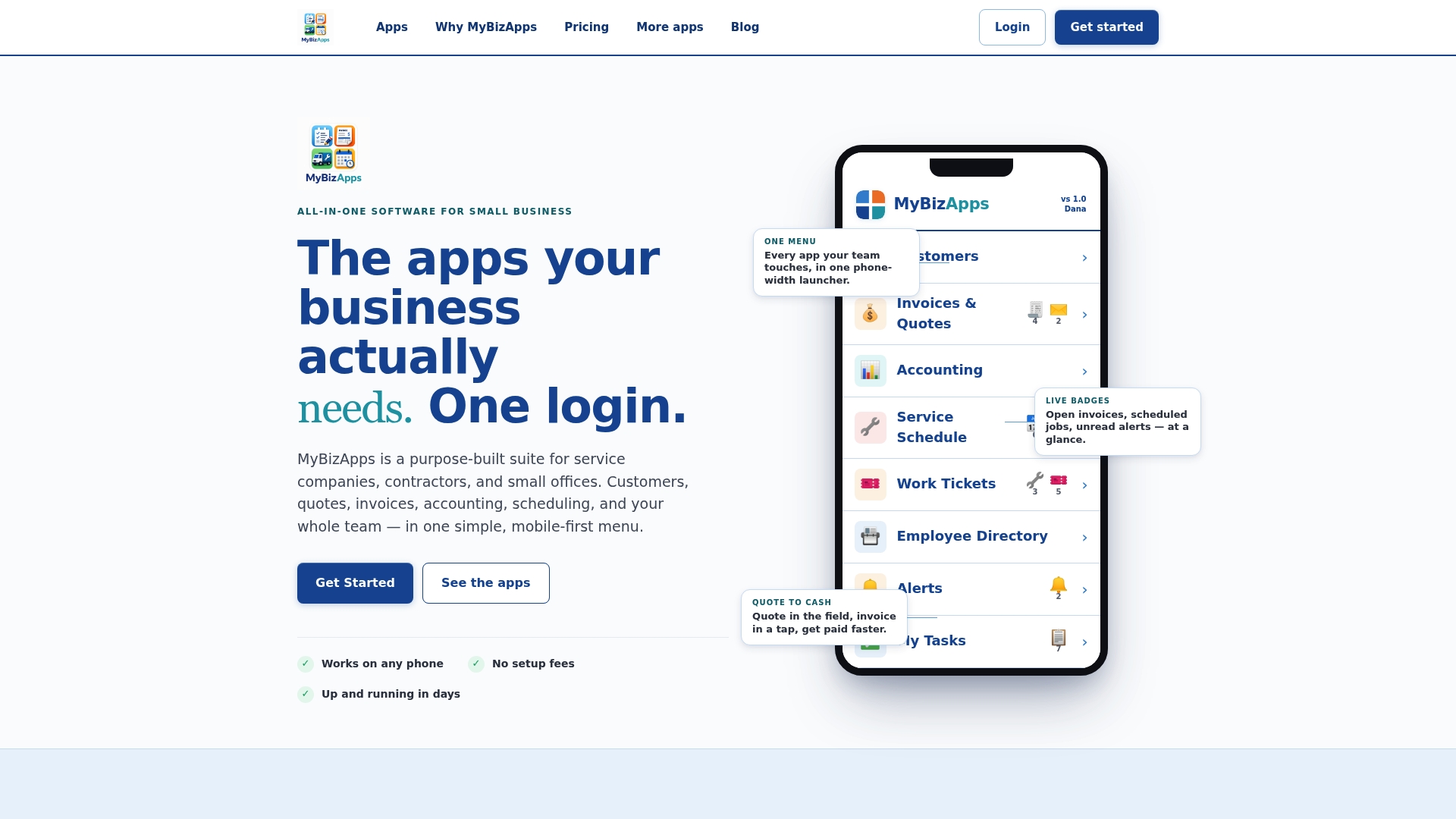
For a contractor or small service business, that consolidation is the real advantage over running a standalone ticketing tool next to a separate invoicing app: one login means one source of truth, and no data re-entry between systems when a job closes. If you’re currently using open-source ticketing or a spreadsheet to track requests, the jump to an integrated system pays off fastest once your team dispatches five or more jobs a week.
Start small. Pull up the Mybizapps price sheet to see which plan fits your team size, import your current asset or customer list, and train one or two technicians on the mobile app before rolling it out company-wide. You can also compare plans directly on the Mybizapps pricing page if you’re weighing seat counts against your current headcount.
Where to Learn More About Work Order Tracking
For deeper reading on dashboard design and KPI definitions, InetSoft’s work order KPI dashboard guide breaks down the metrics worth tracking. Siemens covers the shift toward proactive maintenance planning in more depth. Small teams considering a self-hosted option can review osTicket’s open-source ticketing documentation directly.
The Part Nobody Tells You About Work Order Tracking
Every guide on this topic, including the one you just read, focuses on process and features. What gets skipped is the actual failure mode: most tracking systems don’t fail because the software is bad. They fail because someone decided documentation was optional under deadline pressure, and that decision compounds silently for months before anyone notices the backlog.
I’d argue the real differentiator between teams that track work orders well and teams that don’t isn’t the tool at all. It’s whether closing out a job without notes is treated as an incomplete job, full stop. You can buy the best mobile app on the market and still end up with six months of “completed” work orders that tell you nothing when an auditor or an insurance adjuster asks what actually happened.
The KPIs matter, but they’re diagnostic, not preventive. MTTR and backlog size tell you where you’re bleeding after the fact. The habit that actually prevents the bleeding is boring: require the checklist, require the photo, require the timestamp, every single time, even when the job feels too small to bother. Teams that treat that discipline as non-negotiable rarely need to explain a mystery repair bill later. Teams that treat it as a nice-to-have always do, usually at the worst possible moment.
— Philip
Sources
- Reactive vs proactive maintenance (Siemens Asset Management blog)
- osTicket — Support ticketing system