Paperless Work Orders: How to Go Digital Step by Step
Paperless Work Orders: How to Go Digital Step by Step

A paperless work order is a job record that lives on a phone, tablet or computer instead of a carbon-copy pad. It carries the same information (customer, job description, hours, materials, signature), but the office and the field both see it the moment it changes. For a small service company, the switch comes down to three things: copying every field from your paper form, letting technicians update jobs from their phones, and connecting the finished work order to the invoice so nothing waits in a truck for a week.
This guide walks through what a digital work order contains, how it moves from request to payment, how to track work in progress, and how to move your crew over without losing the details your paper form captures today.
TL;DR
- A paperless (digital or mobile) work order holds the same fields as paper, plus photos, timestamps and a signature captured on the screen.
- The biggest gains come from the handoffs: dispatch to technician, technician to office, office to invoice.
- Before switching, map every field on your paper form so nothing is lost; add a completion photo from day one.
- Status tracking replaces “call the tech and ask” with a live view of every open job.
- MyBizApps puts work tickets, scheduling, invoicing and payments under one login, so the work order is never retyped.
Table of Contents
- What a paperless work order actually is
- How a digital work order moves from request to invoice
- Mobile work orders in the field
- Tracking work in progress
- Moving from paper to digital without losing details
- Connecting work orders to the rest of the business
- What to expect from paperless work orders
- Run your work orders with MyBizApps
- Choosing a paperless work order setup: a checklist
- FAQ
- Sources
What a paperless work order actually is
A work order is the instruction and the record for one job. On paper, it is a pad page that gets filled in, signed, photographed or carried back to the office, and eventually typed into an invoice. A paperless work order is the same document built as a form on a device. People search for it under several names: digital work orders, mobile work orders, electronic work tickets. In practice they mean the same thing: the job lives in software, not on a clipboard.
What changes is not the content but the speed and the reach. A paper work order can be in exactly one place. A digital one can be open on the dispatcher’s screen, the technician’s phone and the owner’s laptop at once.
What a digital work order contains
Most small trades underestimate how much their paper form holds. One guide on replacing a work order book describes a fire-safety inspection contractor’s form with 28 separate fields, including arrival and departure times, travel and break time, hours split by pay rate, a trade-specific compliance checklist, work performed, materials used and a customer signature. All but two carried over one-to-one into the digital version.
Your form is probably smaller, but the same families of fields tend to appear:
| Field group | Typical contents | Why it matters later |
|---|---|---|
| Customer and site | Name, phone, service address, access notes | Dispatch, directions, repeat visits |
| Job request | Problem reported, requested service, priority | Scheduling and quoting |
| Assignment | Technician or crew, date, time window | Real-time schedule and alerts |
| Time | Arrival, departure, travel, breaks | Payroll and billing |
| Work performed | Description, checklist results, findings | Proof of service, warranty questions |
| Materials and parts | Items, quantities, prices | Accurate invoice, inventory counts |
| Photos | Before, after, problem areas | Customer confidence, disputes |
| Signature and approval | Customer sign-off on the screen | Completion record |
| Billing | Totals, tax, deposit, payment status | Cash flow |
Are electronic signatures valid?
This is the first question many owners ask. In the United States, the federal ESIGN Act, signed in 2000, gives electronic signatures on electronic contracts the same legal force as handwritten signatures on paper ones. The law does not tie a signature to one technology, so a signature drawn on a phone screen with a recorded intent to sign generally counts. Industries with special rules (some regulated inspections, for example) can have extra requirements, so check with your licensing body or attorney if your trade is regulated.
How a digital work order moves from request to invoice
The real argument for going paperless is not that you save paper. It is that every handoff on the old process was a place for a job to stall. Here is the path a digital work order follows.
- Request comes in. A customer books online, calls, or messages you. The work order is created from the customer record, so name, address and history are already attached.
- Quote, if needed. For anything beyond a standard service, a quote goes out and, once approved, becomes the work order. Nothing is rekeyed.
- Assignment and scheduling. The dispatcher picks a technician and a time slot. The technician is alerted on their phone.
- On site. The technician opens the job, logs arrival, follows the checklist, records materials, takes photos and captures the signature.
- Completion. Marking the job complete updates the status for everyone.
- Invoice and payment. Hours and materials flow into an invoice. The customer pays by card, and the payment shows against the job.
On paper, steps 4 to 6 can take days: the pad rides in a truck, comes back Friday, gets typed in Monday, and the invoice goes out the following week. With a digital order, the invoice can go out before the technician leaves the driveway.
If you run deposits for larger jobs, the same chain applies at the front. Our guide to online deposits for service jobs shows six steps from booking to invoice.
Mobile work orders in the field
A mobile work order is the technician’s view of the same record. What matters is what they can do with one hand, standing in a crawl space or beside a truck.
- See the day’s jobs in order, with address, access notes and customer history.
- Read the job details without calling the office.
- Update status with a tap: en route, on site, waiting on parts, complete.
- Log time and materials as the work happens instead of reconstructing it at 6 p.m.
- Attach photos of the problem and the finished work.
- Collect the signature on the screen.
What about weak signal?
Basements, rural properties and metal buildings are common in service work. When you evaluate any mobile tool, ask how it behaves when the signal drops: can the technician keep filling in the form and have it sync when the connection returns? Put that question to every vendor, and test your own worst job sites during a trial week.
Compliance checklists on the phone
If your trade has required checklists (fire protection, HVAC, electrical, food safety), the checklist should be part of the work order, not a separate sheet. Fire protection is a good example: sprinkler and storage rules such as NFPA 30 compliance for chemical warehouses come with specific inspection items that a technician needs to tick off and record on every visit. Building those items into the digital form means the record exists the moment the job closes.
Tracking work in progress
Managers searching for work in progress tracking usually want one thing: to know where every job stands without asking anyone. A paperless system gives you that by turning each work order status into data.
A simple set of statuses is enough for most small teams:
- Requested
- Scheduled
- En route
- In progress
- Waiting on parts or customer
- Completed
- Invoiced
- Paid
Once statuses are consistent, you can answer questions that used to need a round of phone calls:
- Which jobs are running past their time window?
- Which completed jobs have not been invoiced yet?
- Which jobs are waiting on parts, and for how long?
- Which technician has an opening this afternoon?
The “completed but not invoiced” list alone often finds money. Work that is done but sitting in a truck is revenue you have earned and cannot collect.
Showing status to customers and the shop floor
Status is useful beyond the office. Some shops put live job boards on a wall screen so customers waiting in a lobby can see progress. A walkthrough on live repair status dashboards for service centers covers the idea for car service centers: technicians update their mobile work orders, and the office and the customer see the result without a phone call. Even without a wall screen, a customer portal where clients can check their job does the same work.
Moving from paper to digital without losing details
Most failed switches share a cause: the digital form is simpler than the paper one, and the technicians notice what is missing within a week. Avoid that with a short plan.
Step 1: Map every field on your paper form
Lay out a stack of completed paper work orders, not a blank one. Blank forms hide the habits: the margin notes, the circled boxes, the phone number scrawled at the bottom. One guide to replacing a work order book puts it plainly: you cannot wave this away with “just use an app”. List every field, who fills it in, and what the office does with it afterward. If you want help structuring that inventory, this walkthrough on mapping fields and signatures before automating shows the same field-by-field approach applied to invoices.
Step 2: Decide what each field becomes
For every field choose a format that is fast on a phone:
- Checkboxes or pick lists for anything with a fixed set of answers.
- Numeric fields for hours, quantities and prices.
- Short text only where you really need words.
- Photos in place of long descriptions.
- Required fields for anything the invoice depends on.
Step 3: Add what paper never had
Build in a completion photo from day one. Paper never asked for it, but it shows the office and the customer the finished state of the work, and it costs the technician one tap. Timestamps and location of arrival are other things paper could not give you.
Step 4: Run one week in parallel
Pick two or three technicians and a handful of customers. Have them use the digital order for every job while the office keeps the paper pad as a safety net. At the end of the week, compare: what did the paper form capture that the digital one missed?
Step 5: Train in a half hour, not a day
Technicians need to know four things: open today’s jobs, update status, add time and materials, capture the signature. Everything else can wait. A simple interface matters here more than a long feature list.
Step 6: Retire the pads
Set a date, collect the remaining pads and tell customers. Keep the final paper records as long as your accounting or licensing rules require, and store the digital ones with the customer record.
Connecting work orders to the rest of the business
A digital work order that sits alone is only a nicer form. The value multiplies when it connects to the systems around it.
Scheduling. The work order and the calendar are the same object. Assigning a technician sets the time, and a change on the calendar updates the job. If you juggle several crews, read our guide on how to schedule multiple technicians without chaos, plus technician route planning for small service teams for ordering stops through the day.

Customer records. Each job should attach to a customer history: past work, equipment, access notes, and conversations. Good notes save the second visit from being a repeat of the first. Two short reads help here: customer notes best practices and how to log customer communications.
Quotes and invoices. The approved quote becomes the work order, and the completed work order becomes the invoice. No retyping means fewer errors in quantities and prices.
Payments. Card payment at the end of the job closes the loop and shows up against the work order and in accounting.
Assets and inventory. If technicians use parts from stock, recording them on the work order keeps counts honest.
What to expect from paperless work orders
The practical benefits are consistent across small service businesses:
- Faster billing. Jobs close in the field, so invoices can go out the same day.
- Fewer lost or illegible forms. Typed and tapped entries read the same to everyone.
- Better records. Photos, timestamps and signatures are stored with the customer.
- Less double entry. The office stops typing what the technician wrote.
- Visibility. Owners see status without interrupting the crew.
To get those gains, plan for the change itself: a few days of adjustment for the crew, a clean customer list to start from, and a clear rule about when a job counts as complete. Teams that set those three things up early tend to settle in quickly.
Our perspective: one login beats five tools
We built MyBizApps because we kept seeing the same pattern in small service companies: a scheduling app here, an invoicing tool there, a spreadsheet for jobs, and a notebook in the truck. Each tool was fine alone. The trouble was in the gaps, where someone had to copy a job from one place into another.
Our view is that the work order should be the spine of the business. A customer is created once. A booking becomes a scheduled job. The job becomes a work ticket the technician opens on a phone. The finished ticket becomes an invoice, and the invoice becomes a card payment and an accounting entry. All of that sits under a single login, in a mobile-first interface designed for both the field and the office.
We also believe you should not have to buy everything on day one. Our modules are available as needed, so a crew can start with what hurts most, such as scheduling or billing, and add the rest as it grows. Teams that use the platform tell us they get faster invoicing and payments, which is what we designed it to do.
Philip
Run your work orders with MyBizApps
If you want work tickets, scheduling, invoicing and payments in one place, MyBizApps is built for service companies, contractors and small offices. Each module on the pricing page, including Service Scheduling, the Billing Module and Accounting, is $21 per month, so you can add only what your crew needs. Work Tickets is available from the MyBizApps home page, and the pricing page lists the other modules and ready-made apps.
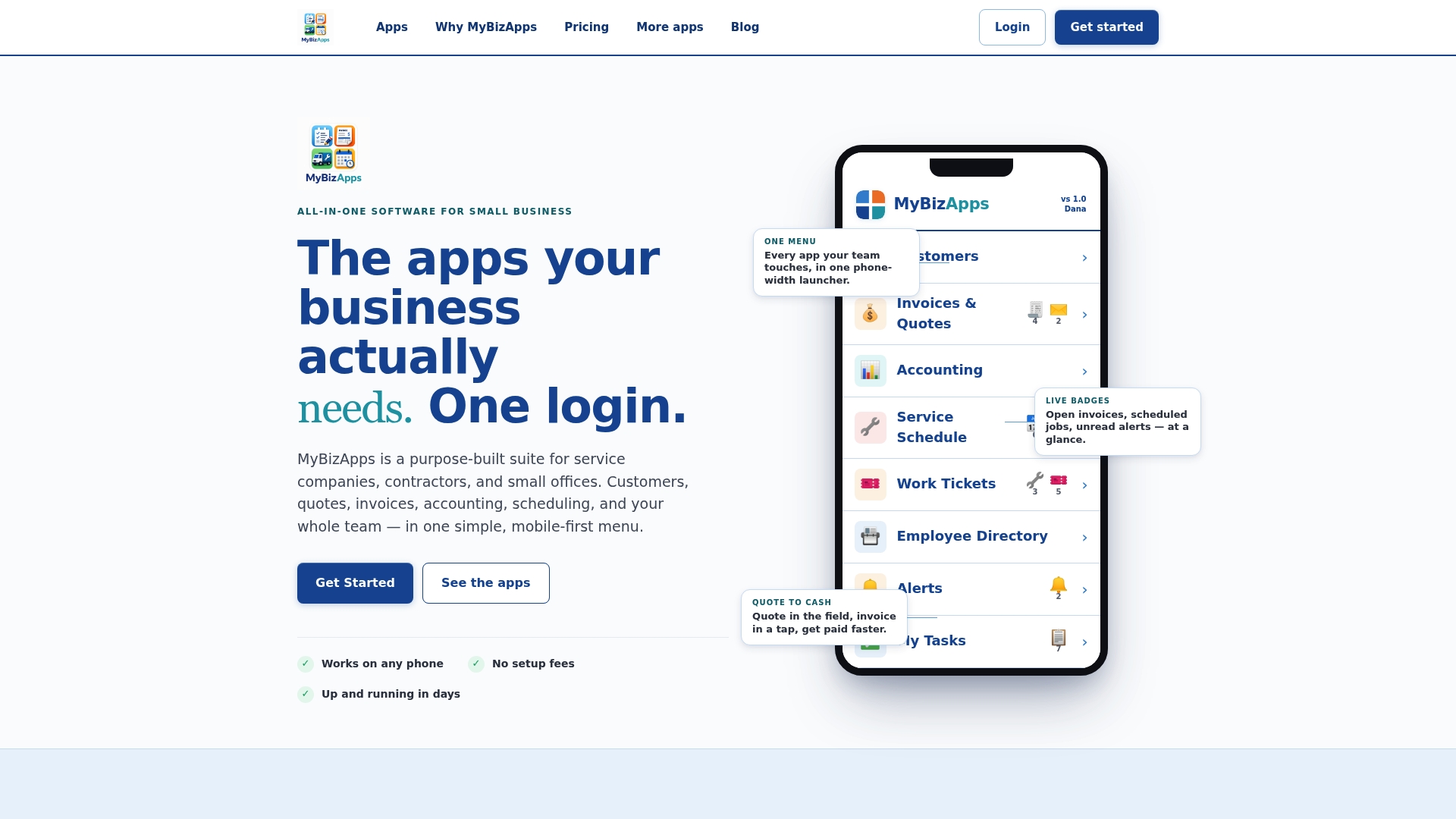
You can also compare modules and costs on the price sheet before you decide where to start. Auto-service shops can look at the Oil Change Shop app, which is built around that kind of job.
Choosing a paperless work order setup: a checklist
Whatever you choose, run candidates through the same questions.
- Can the form match every field on my paper work order?
- Can technicians complete a job from a phone with one hand?
- What happens at a job site with no signal?
- Does the signed, completed order become an invoice without retyping?
- Can customers pay by card on the spot?
- Can I see the status of every open job on one screen?
- Do customer history and notes appear on the job?
- Can I add modules later without moving to a new system?
If the answers are yes, you have the foundation of a paperless operation, not just a prettier form.
FAQ
What is the difference between digital and mobile work orders?
They describe the same record from two angles. A digital work order is any work order stored in software instead of on paper. A mobile work order is the version a technician opens and updates on a phone or tablet in the field. Most modern systems give you both, so the office and the field work from one job.
Do I need to keep paper copies?
That depends on your industry, state and customers. Many small service businesses keep digital records only, but regulated trades and some contracts set retention rules. Check with your accountant, licensing board or attorney for the rules that apply to you, and store signed digital copies with the customer record.
How long does it take to switch from paper?
For a small crew, the setup is usually measured in days, not months: map your form, build it, run a week in parallel, then retire the pads. The mapping step takes the most thought, so give it the most attention.
How do I track work in progress across several technicians?
Use a consistent set of statuses, such as scheduled, in progress, waiting on parts, completed and invoiced, and have technicians update them from their phones. Managers then see every open job on one screen and can spot late jobs and completed-but-uninvoiced work quickly.